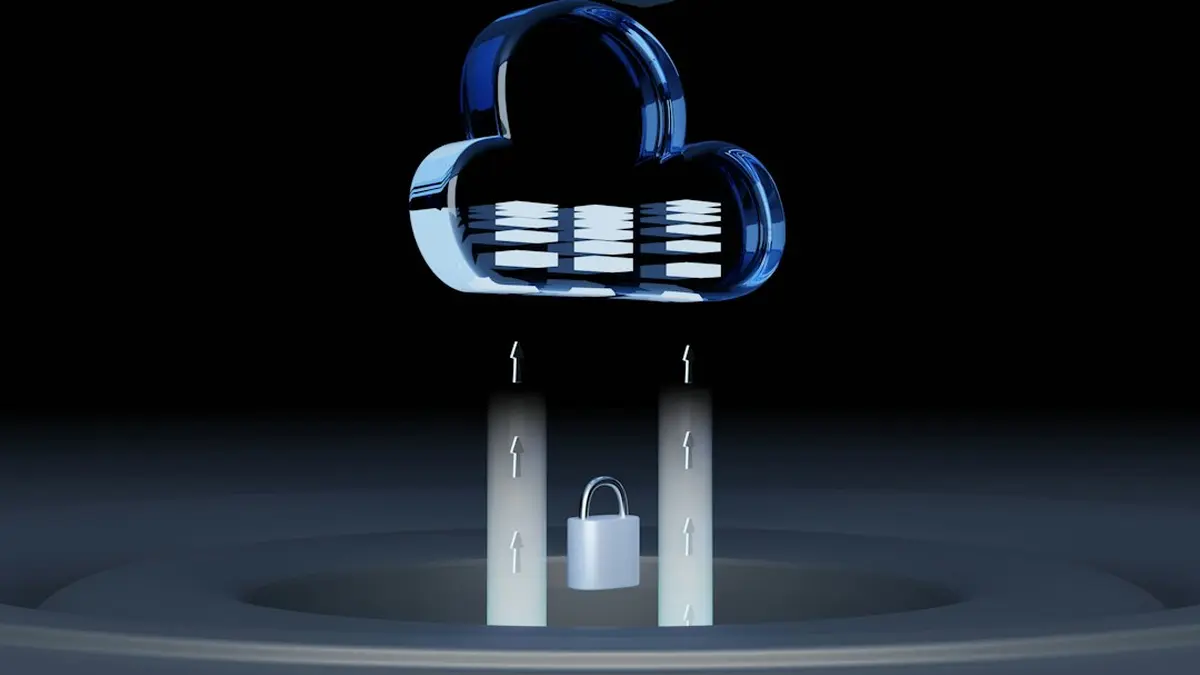
When you finish this, your backup bucket will be write-once-read-many (WORM): each backup file can be read but can't be deleted or overwritten until its retention date passes. Plan on about an hour, most of it waiting and testing. One thing to know before you start: AWS says that once Object Lock is enabled on a bucket, it cannot be disabled and versioning cannot be suspended. Use a new bucket built for this job.
What you need
-
An IAM role allowed to set lock configuration
s3:PutBucketObjectLockConfiguration for bucket defaults, plus s3:PutObjectRetention and s3:PutObjectLegalHold.
-
A new, empty bucket name
Euronodes, an S3-compatible provider, says existing buckets can't be converted. AWS describes enabling it on eligible existing versioned buckets. Starting fresh avoids the question.
-
A retention figure in days
Base it on how long you need a clean restore point. Locked versions are billed for the full retention period, including every old version.
-
Backup software that writes to S3
It does not need to understand Object Lock if you set a bucket default.
Setting up the bucket, step by step
1. Create the bucket with Object Lock enabled. In the console, tick Object Lock when creating the bucket. The console will ask you to turn on versioning, and the API and CLI turn it on for you. Worked if: the bucket's Properties tab shows Object Lock as Enabled.
2. Confirm versioning is on. Object Lock protects individual object versions (each upload to the same name gets its own copy). Without versioning, nothing can be locked. Worked if: Bucket Versioning reads Enabled. Hivenet suggests waiting 15 minutes after this before writing test objects, to avoid consistency problems.
3. Set a default retention rule in Governance mode for 1 day. Governance mode blocks deletes for most users, but anyone with the s3:BypassGovernanceRetention permission can override it. AWS recommends testing with it and with short periods. Worked if: Default retention shows Governance, 1 day.
4. Upload a test file. Then run aws s3api head-object --bucket YOUR-BUCKET --key test.txt. Worked if: the output includes an ObjectLockMode and an ObjectLockRetainUntilDate.
5. Try to delete that specific version. Pass its version ID. Worked if: you get 403 Access Denied. A delete without a version ID returns 200 OK but only adds a delete marker (a placeholder that hides the file from listings). The locked version is still there, which is why ransomware issuing simple deletes can't destroy it.
6. Change the default to production settings. For backups you want ransomware to be unable to touch, pick Compliance mode. In Compliance mode, no user, including the root user, can delete a locked version or shorten its retention. AWS says the only way to remove one early is to delete the whole AWS account. Worked if: Default retention shows Compliance and your chosen number of days.
7. Lock down the bypass permission. If you stay on Governance mode, grant s3:BypassGovernanceRetention to almost no one. Euronodes is blunt about it: Governance is "protection against mistakes," not against someone holding valid keys. Worked if: your backup job's credentials lack that permission.
8. Point the backup job at the bucket. Worked if: after the first run, head-object on a new backup file shows the Compliance mode and a retain-until date.
Where this goes wrong
Your backups now survive a stolen admin password and a rogue delete script. For an extra copy, AWS says Cross-Region Replication carries the lock settings over to the destination bucket. The next question is about storage you don't run yourself: a vendor holding your data hasn't necessarily set up anything like this, and the reasons vendor backups are a blind spot are worth checking against your contracts.
Has your vendor locked its copy of your data?
A breach case showing why third-party backups need the same scrutiny as your own.
Read the C-Track breach analysis
Comments
No comments yet. Be the first to comment!
Leave a Comment